
 Connect guide
How to post to Pinterest from Claude.Two minutes, no API key.
Add the Breakreach connector in Claude (Customize → Connectors), connect your Pinterest account, then just ask. Claude drafts, schedules and publishes Pinterest posts from the conversation.
Claude BreakreachPinning to Pinterest
create_post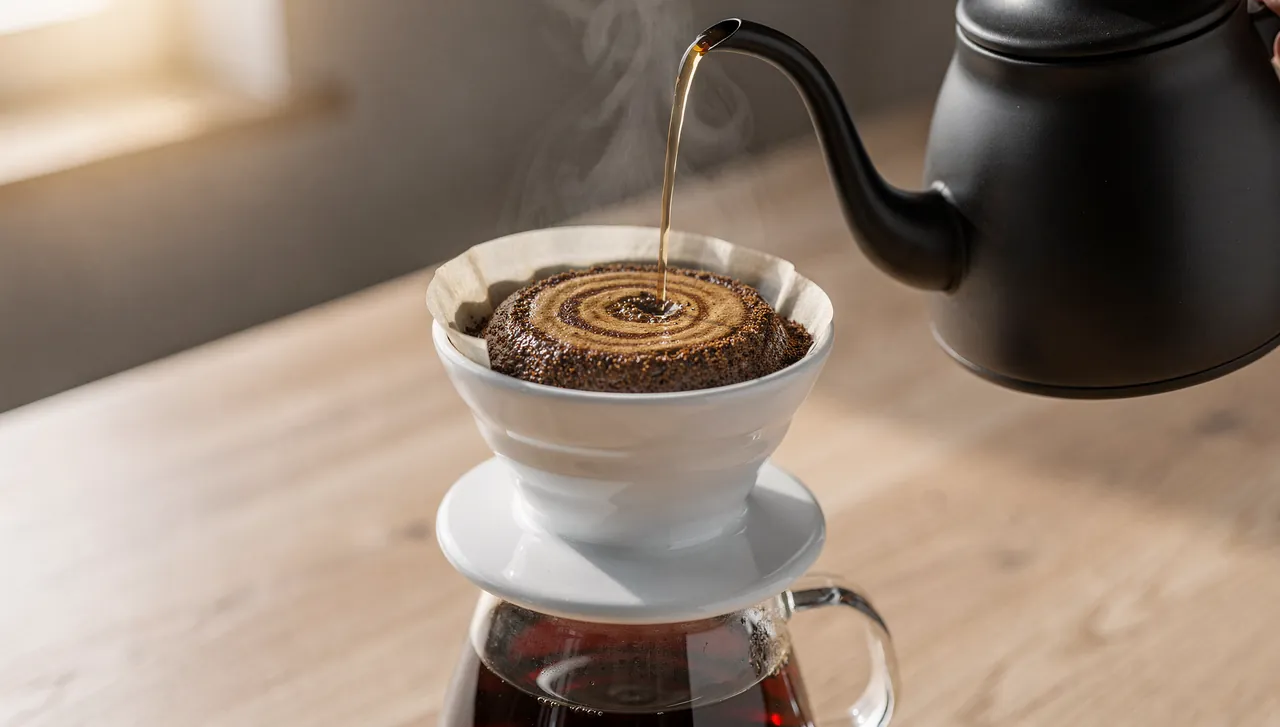
Pour-over in 3 pours, for a sweeter cup
Northbeam Coffee
Why run Pinterest from a conversationClaude writes, Breakreach publishes.
Pinterest works on volume and on descriptions that read like search queries, which is dull work by hand. Generating twenty variations of a description from a conversation is the part a model is genuinely good at.
Nothing runs on your machine. Once a post is scheduled, it publishes from our servers, so Claude can be closed and your laptop can be off.
Set it up in two minutes.6 steps, once.
- Claude· Customize › ConnectorsConnectorsSearch
 ConnectBreakreachSchedule and publish to 20 social networks
Connectors let Claude use outside tools for you. You can disconnect them at any time.
Claude· Customize › ConnectorsConnectors let Claude use outside tools for you. You can disconnect them at any time.
What you can post to PinterestAnd how to ask for each.
- Image pinOne image, pinned to the board you name. The first line of your text becomes the title, up to 100 characters, and the text becomes the description, up to 800 characters.Pin this photo to my Brew guides board
- Video pinOne MP4 or MOV video, 4 seconds to 15 minutes. Pinterest processes it before the pin goes out, and if processing fails, the post fails rather than going out without it. An image in the same post becomes the cover, otherwise Pinterest takes a frame from the first second.Pin this clip to my Brew guides board with the latte photo as its cover
- Destination linkGive a link and the pin opens it when clicked.Pin it with a link to our pour-over recipe page
Let Claude write the Pinterest postThen say what to change.
Pinterest descriptions are read by search, so ask for the words people type: the dish, the method, the problem it solves. Since the title is the first line of your text, ask for a first line that works as a title.
Write a pin description for this pour-over photo, first line under 100 characters
Give me five variations for five different pins
Pin this product photo to my Inspiration board
Schedule 10 pins from these images across the week
Schedule it instead of posting nowOr let it take the next free slot.
Name a time and the post is scheduled in your workspace's time zone. Or skip the time: use my next free slot puts it in the first open slot of your posting schedule, which is weekdays at 11 AM and 4 PM until you change it in Breakreach. Scheduled Pinterest posts go out from Breakreach's servers, so the conversation, the app and your laptop can all be closed.
Schedule 10 pins from these images across the week
Pin it Saturday morning
After it's publishedStats, edits and deletions.
How it did
Per-pin stats aren't available yet. Your account's followers and monthly views are.
Edit or delete it
Until it goes out, you can change anything from the conversation: move it to Friday, change the caption, turn it back into a draft. A failed post can be fixed and rescheduled the same way. Once it's published, the connector can't edit or delete it on Pinterest, and deleting it in Breakreach only takes it off the calendar, so edit or remove a published post on Pinterest.
What Pinterest requiresAnd the limits to know.
- Requires a Pinterest account with at least one board.
- Pins require an image or a video.
| Spec | |
|---|---|
| Title | The first line of your text, up to 100 characters. |
| Description | Up to 800 characters, and it is indexed, so write it for search. |
| Media | One image or one video is required, vertical, ideally 2:3. With both, the video goes out and the image becomes its cover. |
| Board | Required. Breakreach lists your boards so you can name one in the prompt. |
What it can't do yet
- Several images in one pin.
- Per-pin stats.
Three things people do with it
- Pin a product image to the right board with a description written for search
- Schedule a series of pins across the week rather than dumping them at once
- Reuse an Instagram visual without leaving the conversation
A safe routine for a teamDrafts first, then the calendar.
- Ask for drafts, not postsSay save it as a draft and nothing is scheduled. Drafts land in the Breakreach calendar, where the team can read them, and schedule the draft for Thursday at 9 AM turns one into a post.
- Review in the calendarEvery Pinterest post, from Claude, the API or the app, sits on the same calendar with its time, account and media. Open one to edit it or move it.
- Name the brandWith several workspaces, the connector uses your first one unless you name another, so say which brand the post is for.
- Approve each postSet Claude to ask before it acts (details below), so nothing is published without someone clicking allow.
- Know when something failsA post that hits a temporary error is retried up to three times over 30 minutes. If it still fails, it's marked failed in the calendar with a notification, and you can fix and reschedule it from the chat.
- Revoke access anytimeDisconnect the connector in Claude and the assistant can't post any more. Posts already scheduled stay in the calendar until you cancel them.
Using the connector in ClaudePlans, confirmations, phones.
- Which plans have itConnectors from Claude's directory work on every plan, Free included. On Team and Enterprise, an Owner first adds the connector for the organization in Organization settings → Connectors, then each member signs in with their own account.
- Confirmations before postingClaude asks before using a tool, with Allow once or Always allow. In Customize → Connectors → Breakreach → Tool permissions you can set each tool to Always allow, Needs approval or Blocked: for example, reading posts always allowed and creating posts needing approval. Research mode can call connector tools without asking.
- Web, desktop and phoneConnectors work on claude.ai, in the desktop apps and in the iOS and Android apps. Add Breakreach on the web or desktop, and it's available on your phone the next time you log in.
- DisconnectingIn Customize → Connectors, select Breakreach: Disconnect signs Claude out, and Remove in the menu takes it off your account. Posts already scheduled in Breakreach still go out.
Sources, checked September 2026: Use connectors, Getting started with connectors, Connector directory.
Other ways to post to Pinterest from ClaudeAnd when they're the better choice.
- Pinterest's own schedulerBusiness accounts can schedule pins up to 30 days ahead, 10 at a time, with a destination link. Pinterest Help
- Pinterest's own connectorPinterest's MCP server covers ads, analytics and keywords, and started in 2026 with a few alpha partners. Pinterest
- Zapier or MakeBoth can create a pin when a trigger fires. Zapier, Make
- Copy and pasteAsk the assistant for the text, then post it yourself in the app. Free and fine for a post or two, but nothing is scheduled and the assistant can't see how it did.
When it doesn't workThe fixes for what people run into.
- Which board will it use?The one you name. If you do not name one, the assistant asks, since Pinterest refuses a pin without a board.
- My image was rejectedPinterest wants images at least 200 pixels wide and prefers vertical ratios. Square works, landscape performs poorly.
- My video failedPinterest takes MP4 or MOV files, H.264 or H.265, from 4 seconds to 15 minutes and up to 2 GB. When it can't process a video, the post fails and says so rather than going out without it.
- Are analytics available?Not per pin yet. Your account's followers and monthly views are available from the conversation.
Questions, answered.
Short answers about posting to Pinterest from Claude.
No. Scheduled posts publish from Breakreach's servers at the time you chose, so you can close Claude and your laptop.
Yes. Breakreach publishes through Pinterest's official API with an authorization you grant, and you can revoke it at any time. Your password is never shared.
Creating an account and connecting your first social account is free. Scheduling and publishing need a plan, from $29 a month ($23 billed yearly), and you can cancel anytime.
Yes. The same connector handles Instagram, TikTok, X, Reddit, LinkedIn, YouTube and more, and one request can publish to several networks at once.
Yes. Ask Claude to save drafts, then review and edit everything in the Breakreach calendar before it publishes.
With a link. The connector takes media as links it can download, such as a file on your website or a public cloud storage link, and copies the file to Breakreach's storage before posting.
Yes. It can list the boards of your connected Pinterest account, so you can say pin it to Brew guides.
Yes. Name the link in the request, or fill the Link field in the Breakreach composer, and the pin opens it when clicked.





Put your socials on autopilot.Live in two minutes.
Plans from $29 a month. Cancel anytime.